Measuring basics
There are two ways to measure a field: tap its corners on the map, or walk around it with GPS.
1. Tap points on the map
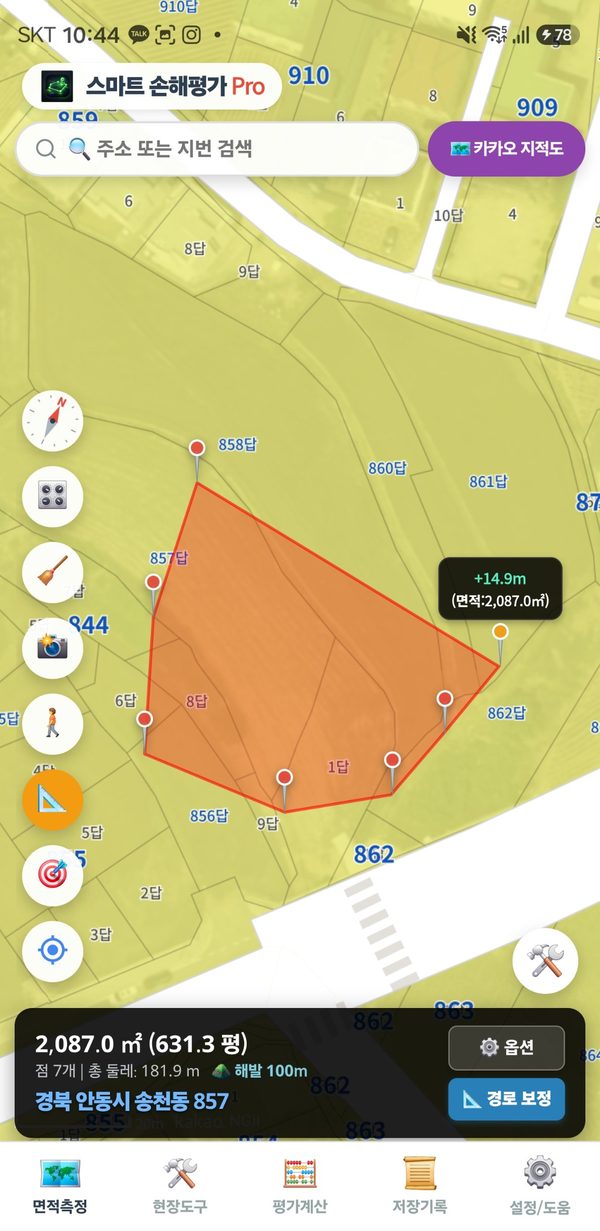
Look at the satellite map and tap the corners of the field one after another. You can measure without going to the site.
- Find the field. Type an address in the search box at the top and press the search (Enter) key, then tap a result. You can also type coordinates such as
40.4168, -3.7038. If you are on site, tap “My location”. - Tap the corners in order. Go around the edge in one direction (clockwise or counter-clockwise). After 3 points the area appears.
- Adjust the last point. If the point you just placed (orange) is a little off, drag it, or use the arrow buttons (▲▼◀▶) and joystick at the bottom right. Each arrow tap moves it about 10 cm.
- Made a mistake? Tap “↺ Undo” on the right to go back one step.
2. Walk around the field (GPS)
Walk along the edge of the field and the app draws the zone along your GPS path. Use it when the boundary is not visible on the satellite map, or when you need the area actually being farmed.
- Wait 5–10 seconds at the starting point. Stand in an open spot until the GPS indicator in the status bar turns green (±5 m or better).
- Tap “🚶 Walk track” on the left. The first time, the app asks for location and notification permission. Allow both so recording continues with the screen off.
- Walk along the edge. Hold the phone with its top pointing in the direction you walk. In a pocket the path gets shaky.
- Stop for 2–3 seconds at each corner. Corners come out sharper.
- Back at the start, tap “🚶 Walk track” again to finish.
- If the line zigzags, tap “📐 Path fix”. It removes jumpy points and straightens the line. Undo it with “↺ Undo” if you do not like the result.
On a tractor or in a vehicle, use “🚗 Vehicle track” in the right tool menu. Pro
3. Reading the result
The dark status bar at the bottom shows the result in real time.
| Shown | Meaning |
|---|---|
| 2,086.7 m² (0.2087 ha) | Area of the zones you drew. With several zones it is the total; excluded zones are subtracted. |
| overlap −100.6 m² / excl. −25.1 m² | If zones overlap, the overlapping part is counted only once; “excl.” is the area of excluded zones. Both are already subtracted from the total. |
| Points 9 | Perimeter 92.3 m | Number of points and perimeter length. |
| ±6 m Fair | GPS error radius: ±5 m or better is good (green), 5–8 m fair (yellow), 8–12 m weak (orange). |
| Address | Address of the first point. |
“⚙️ Options” in the status bar lets you enter a reference area to see the difference in %, or measure the slope angle of a sloped field to get the horizontal area. The slope-corrected area is for reference only.
4. Left buttons
| Button | What it does |
|---|---|
| 🧭 Compass | Shows which way the phone is pointing. The map always has north up. |
| 🎛️ Display | Shows or hides button labels, area labels on the map, your location arrow and the compass. |
| 🧹 Reset | Clears all zones and lines from the map. |
| 📸 Capture | Saves the map (without buttons) as a picture. |
| 🚶 Walk track | Starts or ends measuring by walking. |
| 📐 Area / 📏 Length | Switches between area and length measurement. Length mode shows each segment and the total length. |
| My location | Moves the map to where you are. |
Tap “?” at the top right of the screen to open this guide (the point-editing page while you are editing points).
5. Right tool menu
Tap “🛠️” at the bottom right to open it.
| Button | What it does |
|---|---|
| ✏️ Continue | Keeps adding points to the current zone. This is the default. |
| ➕ Add area | Starts another zone somewhere else. Areas are added together. |
| ➖ Exclude area | Draws a part to subtract inside a zone (pond, building, grave). That area is removed from the total. |
| ✂️ Point edit Pro | Move or delete points, or tap a boundary line to add one. |
| 🗑️ Delete zone Pro | Deletes just one of several zones. |
| ✨ Auto-draw parcel Pro Korea only | Tap parcels to draw their cadastral boundaries. |
| 🚗 Vehicle track Pro | Records the path at vehicle speed. |
| ↺ Undo / ↻ Redo | Goes back or forward one step. |
| 📌 Measurement history Pro | Saves the drawn coordinates with a name so you can load them again later. |
6. Keeping the result
- As a picture — “📸 Capture” saves the map and area as an image in your gallery.
- As editable data — “📌 Measurement history” keeps the point coordinates. Load them later to continue or correct the measurement. Up to 200 entries. Pro
7. Common mistakes
- Typed an address but did not tap a result — the map does not move. Press the search key and tap a result.
- Measured two separate fields with “Continue” — they become one zone. Tap “➕ Add area” before starting the second field.
- Started walking before GPS was ready — the start point is off by a few metres. Wait for green first.
8. When it differs from the official area
The app's area can differ from the land register by about 0.5–1%. Land registers use a flat map projection, while map apps calculate on the round Earth, and satellite images can be shifted by a few metres. This happens in every map app.