Point edit
Changes the shape of a zone you have drawn. Use it when a walked path jumped, or to fit a boundary to the actual field. Pro
Start and finish
- Start: tap “🛠️” at the bottom right → “✂️ Point edit”. Every point gets a pin, and each zone's number and area appear at the top.
- Finish: tap “Finish edit” in the fine-tune panel, or tap “✂️ Point edit” again.
Moving a point
- Press and drag a pin to the new spot. The area is recalculated immediately.
- The moved point is selected (orange) and fine-tune buttons appear on the right.
- Each tap on an arrow (▲▼◀▶) moves it about 10 cm; hold to keep moving. A light push on the joystick moves slowly, a full push moves fast.
Adding a point
Tap on a boundary line and a point appears there. The new point is selected, so you can drag or fine-tune it right away.
Tapping a little away from the line only shows a hint. Zoom in to hit the line easily. No point is added right next to an existing point.
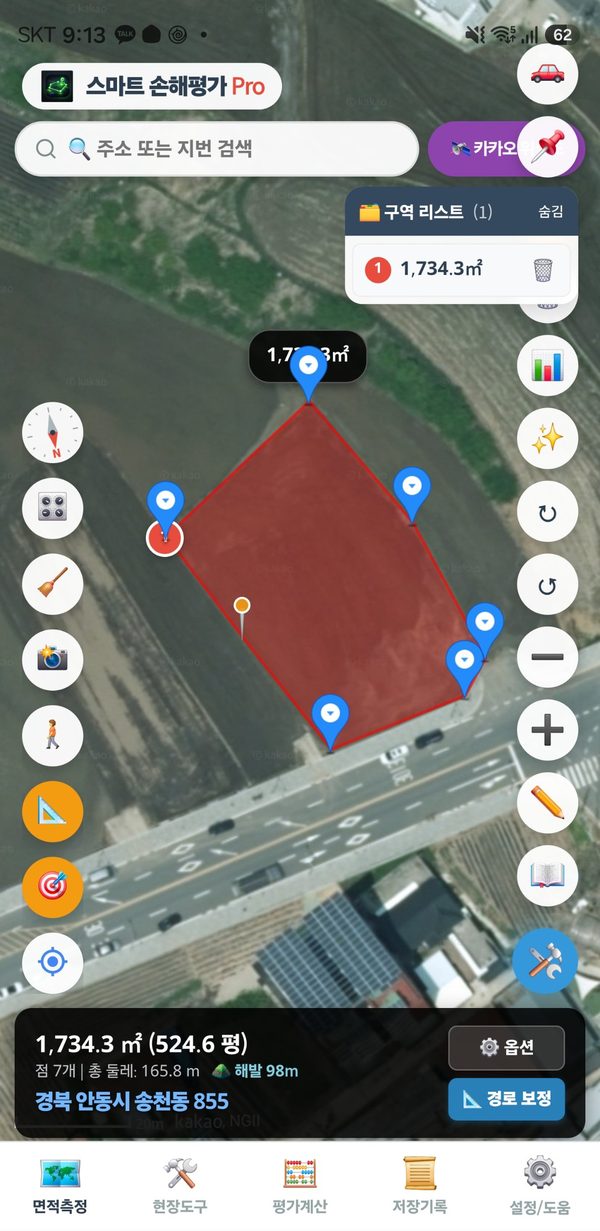
Screenshot
Deleting a point
Tap a pin briefly and a “Delete this point?” window appears. Tap OK to delete it.
A light touch opens the delete window. Tap Cancel if you do not want to delete. To only select a point, drag it a little further.
If you made a mistake
“↺ Undo” goes back one step. Moving, adding and deleting can all be undone.